Category: Linux Administration / DevOps / Server Troubleshooting
By UnifiedPBX.in | Production rescue, VoIP platforms and VPS hardening
Introduction
Have you ever entered the correct password when running sudo on an Ubuntu server, only to receive:
[sudo] password for deploy:
Sorry, try again.
You reset the password, checked user permissions, inspected PAM configuration and verified the sudoers file, but the problem continued.
In some cases, the problem is not the password, PAM, or the sudo executable at all.
A custom shell script or executable with the name sudo may be intercepting your commands before the actual system sudo program is executed.
This article explains how to identify this problem, understand why it happens and restore normal sudo authentication safely—based on a real Ubuntu VPS incident we diagnosed and resolved.
1. Understand How Linux Resolves Commands
When you execute:
sudo systemctl restart nginxyour shell searches for the executable using its command-resolution rules.
The PATH environment variable contains directories searched by the shell.
For example:
echo "$PATH"Output:
/home/deploy/bin:/usr/local/sbin:/usr/local/bin:/usr/sbin:/usr/bin:/sbin:/binNotice that /home/deploy/bin appears before /usr/bin.
If that directory contains a file named sudo, the shell may execute that file instead of the official Ubuntu executable:
/usr/bin/sudoBash also caches command locations, so a previously resolved command can continue pointing to an old path until the hash table is cleared.
2. Identify Which Sudo Executable Is Running
Start by checking how your shell resolves sudo:
type sudo
command -V sudo
command -v sudo
A normal Ubuntu installation should resolve to:
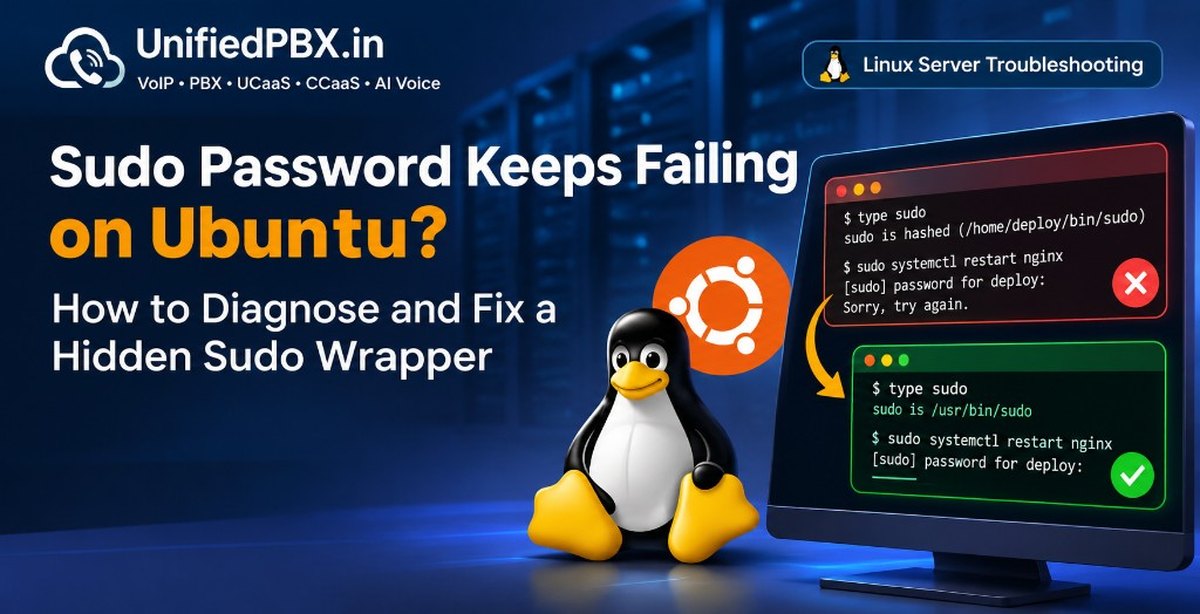
/usr/bin/sudoHowever, in our real-world troubleshooting case, the result was:
sudo is hashed (/home/deploy/bin/sudo)This was the first major indication that the problem was not necessarily with the system sudo executable.
Check the PATH:
echo "$PATH"Then inspect the suspicious file:
ls -l /home/deploy/bin/sudo
file /home/deploy/bin/sudo
cat /home/deploy/bin/sudo
3. The Actual Root Cause: A Custom Sudo Wrapper
The investigation revealed this shell script:
#!/bin/sh
printf "%s\n" "$DEPLOY_SUDO_PASS" | /usr/bin/sudo -S "$@"
This script was located at:
/home/deploy/bin/sudoFirst: printf "%s\n" "$DEPLOY_SUDO_PASS" attempts to retrieve the password from an environment variable named DEPLOY_SUDO_PASS.
Second: | /usr/bin/sudo -S pipes the value into the real sudo executable. The -S option tells sudo to read the password from standard input rather than the terminal.
Third: "$@" forwards the original command-line arguments to the actual sudo executable.
The problem was that DEPLOY_SUDO_PASS was not set.
Consequently, the wrapper supplied an empty line to sudo instead of a valid password.
The result was repeated authentication failures, even though the account password was correct.
The relevant sudo option is documented in the official sudo manual: -S reads the password from standard input. See the Linux sudo manual — sudo(8).
4. Verify Whether the Environment Variable Is Set
Check whether the variable exists without exposing its contents:
if [ -n "$DEPLOY_SUDO_PASS" ]; then
    echo "DEPLOY_SUDO_PASS is SET"
else
    echo "DEPLOY_SUDO_PASS is EMPTY or UNSET"
fi
You can also check common shell configuration files:
grep -nH 'DEPLOY_SUDO_PASS' \
    ~/.bashrc ~/.profile ~/.bash_profile \
    /etc/environment /etc/profile 2>/dev/null
In our case, the variable was empty and no configuration entry was found.
5. Test the Official Sudo Executable Directly
Before changing anything, bypass the wrapper.
Run:
/usr/bin/sudo -k
/usr/bin/sudo -v
Here:
-kinvalidates the cached authentication timestamp.-vvalidates the user's credentials.
The server displayed the normal interactive password prompt and accepted the password.
This established that the actual sudo executable and the account's authentication path were working.
You can verify the result by executing:
/usr/bin/sudo idExpected output:
uid=0(root) gid=0(root) groups=0(root)6. Safely Disable the Custom Wrapper
Do not immediately delete an unfamiliar executable. Preserve a backup first.
In our case, the wrapper was located in:
/home/deploy/bin/sudoThe following commands safely disable it:
cp -p /home/deploy/bin/sudo \
      /home/deploy/bin/sudo.backup

mv /home/deploy/bin/sudo \
   /home/deploy/bin/sudo.disabled
Now clear Bash's command-location cache:
hash -rCheck the executable again:
type sudo
command -v sudo
Expected result:
sudo is /usr/bin/sudo
/usr/bin/sudo
The important point is that clearing Bash's hash alone is not sufficient if the wrapper remains in a directory that appears earlier in PATH. The wrapper must also be disabled or the PATH corrected.
7. Perform the Final Authentication Test
Run:
sudo -k
sudo -v
sudo id
Expected output:
[sudo] password for deploy:
uid=0(root) gid=0(root) groups=0(root)
If these commands succeed, normal sudo authentication has been restored.
Keep the backup temporarily. Remove obsolete wrapper files only after verifying that no deployment script depends on them.
8. Additional Troubleshooting Commands
If sudo still fails after bypassing a custom wrapper, investigate the normal authentication components.
Check user membership:
id deploy
groups deploy
Check password status:
sudo passwd -S deployCheck sudoers syntax:
sudo visudo -cCheck the sudo executable:
ls -l /usr/bin/sudo
/usr/bin/sudo -V
Check authentication logs:
sudo journalctl -t sudo --since "15 minutes ago"On Ubuntu, authentication-related messages may also be available in:
sudo grep -i sudo /var/log/auth.log | tail -30Do not modify PAM or sudoers configuration until you have evidence that those components are responsible.
9. Security Recommendations
This incident also highlights several important security practices.
- Avoid custom commands named after system utilities. A wrapper named
sudo,ssh,suorpasswdcan create confusing command-resolution behaviour. - Avoid storing administrator passwords in environment variables. Environment variables can be exposed through processes, debugging tools, shell configuration and application diagnostics.
- Use absolute executable paths in critical automation. For example,
/usr/bin/sudoremoves ambiguity about which executable is being invoked. - Keep PATH configuration predictable. User-writable directories should not unexpectedly shadow important system utilities.
- Preserve backups before changing system commands. Rename suspicious files first and verify the result before deleting anything.
- Do not disable authentication to work around a broken prompt. Avoid globally enabling
NOPASSWD: ALLor weakening PAM authentication.
10. Final Takeaway
A sudo authentication failure does not always mean that the password is incorrect.
In this real-world Ubuntu VPS incident, the underlying problem was a custom shell wrapper that intercepted the sudo command, read an unset environment variable and passed an empty password to the actual sudo executable.
The solution was straightforward once the command-resolution issue was identified:
- Inspect how the shell resolves
sudo. - Identify the custom wrapper.
- Test
/usr/bin/sudodirectly. - Disable the wrapper safely.
- Clear the Bash command hash.
- Verify normal authentication.
The lesson: Before changing passwords, PAM or sudoers configuration, verify that your shell is actually executing the official sudo binary.
UnifiedPBX provides software engineering, VoIP, PBX, UCaaS, CCaaS and AI voice automation solutions. We share practical technical guides and troubleshooting experiences to help developers and system administrators build and maintain reliable infrastructure. For production rescue or platform work, use the contact form.
Technical references
- [Linux sudo manual — sudo(8)](https://man7.org/linux/man-pages/man8/sudo.8.html)
- [Ubuntu sudoers manual](https://manpages.ubuntu.com/manpages/noble/man5/sudoers.5.html)
- [sudoers manual — standard input and I/O handling](https://man7.org/linux/man-pages/man5/sudoers.5.html)